 Custody Hero
Download Custody Hero for iPhone, Mac, and Windows
The iPhone app is where you build and run your case. The free desktop helper, for Mac and Windows, brings your text-message history in as evidence. Here is both, and how to get set up.

The app that builds your case
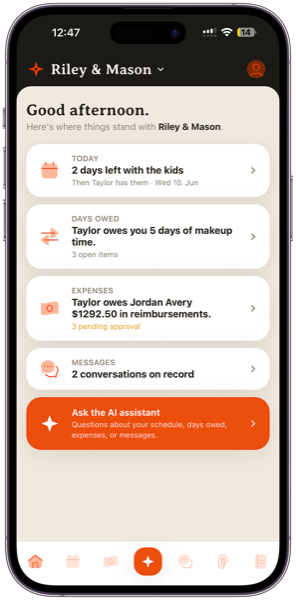
Your custody calendar, days-owed ledger, expenses, imported messages, documents, and the AI assistant that reads all of it, in one place. This is the main app, and where everything comes together.
-
 Calendar, days-owed ledger, and dated notes
-
Expenses, evidence binders, and court-ready exports
-
An AI assistant grounded in your real record
Requires an iPhone on iOS 16.4 or later. Free 3-day trial, then from $14.99/month. See full pricing.
Bring your texts into the record
Apple doesn't let apps read your messages directly, so we built a free desktop helper that does it the right way. It reads a backup of your own iPhone, you pick which iMessage and SMS conversations matter, and they land in your record as searchable, timestamped evidence.
-
One-click iPhone backup on Mac, or use one you already have
-
You choose exactly which conversations import
-
Photos and videos never leave your computer
macOS 12+ · Apple Silicon and Intel · Version 0.1.0 · ~206 MB · Free
Windows 10+ · 64-bit · Version 0.1.0 · ~123 MB · Free

From your phone to your record in four steps
Install and sign in
On a Mac, open the downloaded file and drag Custody Hero into your Applications folder. On Windows, run the installer. Then sign in with the same account you use on your iPhone.
Connect your iPhone
On a Mac, plug your iPhone in with a cable and let the helper back it up with one click, or point it at a backup you already made in Finder. On Windows, back the phone up first with the Apple Devices app or iTunes, then point the helper at that backup.
Pick conversations
Choose the conversations you want to keep and the family they belong to. You stay in control of exactly what gets imported.
Upload to your record
The helper uploads the messages to your account, where they become a fixed, searchable record you can build binders from.
Built to bring over the record, not your whole phone
Text and voice notes only
Messages come over as text, and voice messages are transcribed so they're searchable.
Photos and videos stay put
They can be large, so they're skipped entirely. A message that had one shows a small placeholder, so your record stays intact.
Your backup password is never sent
If your iPhone backup is encrypted, the password stays in memory on your own computer and is never uploaded.
You choose everything
Only the conversations you tick are imported, into the family you select. Read the full Privacy Policy.
Questions about the downloads
Do I need both apps?
Does the helper upload my photos or videos?
Will the helper work on an Intel Mac?
What's different about the Windows version?
My iPhone is on the latest iOS and the one-click backup stalls. What do I do?
Is the download safe to open?
Requires a Custody Hero account and the iPhone app.